
White Background Product Photography: How to Get Pure White
White background product photography means a background of pure white, RGB 255, 255, 255 or #FFFFFF, behind the product. It keeps the focus on what you sell, makes a catalog look consistent, and is required for main images on Amazon. You rarely get it straight out of the camera. You get it by lighting the background separately from the product, then finishing in editing.
Why White Comes Out Gray
A camera sets exposure for the scene as a whole. Light a white backdrop with the same light as the product and it records as light gray, often with a darker patch where the light falls off.
Changing the white balance will not fix it. White balance changes color, not brightness. The fix is more light on the background than on the product, so the background goes fully white while the product stays correctly exposed.
The Setup
| Item | What to use | Budget option |
|---|---|---|
| Backdrop | A seamless white paper sweep that curves from wall to floor | White poster board for small items |
| Product lights | Two softboxes, one either side | A large window, with white foam board opposite |
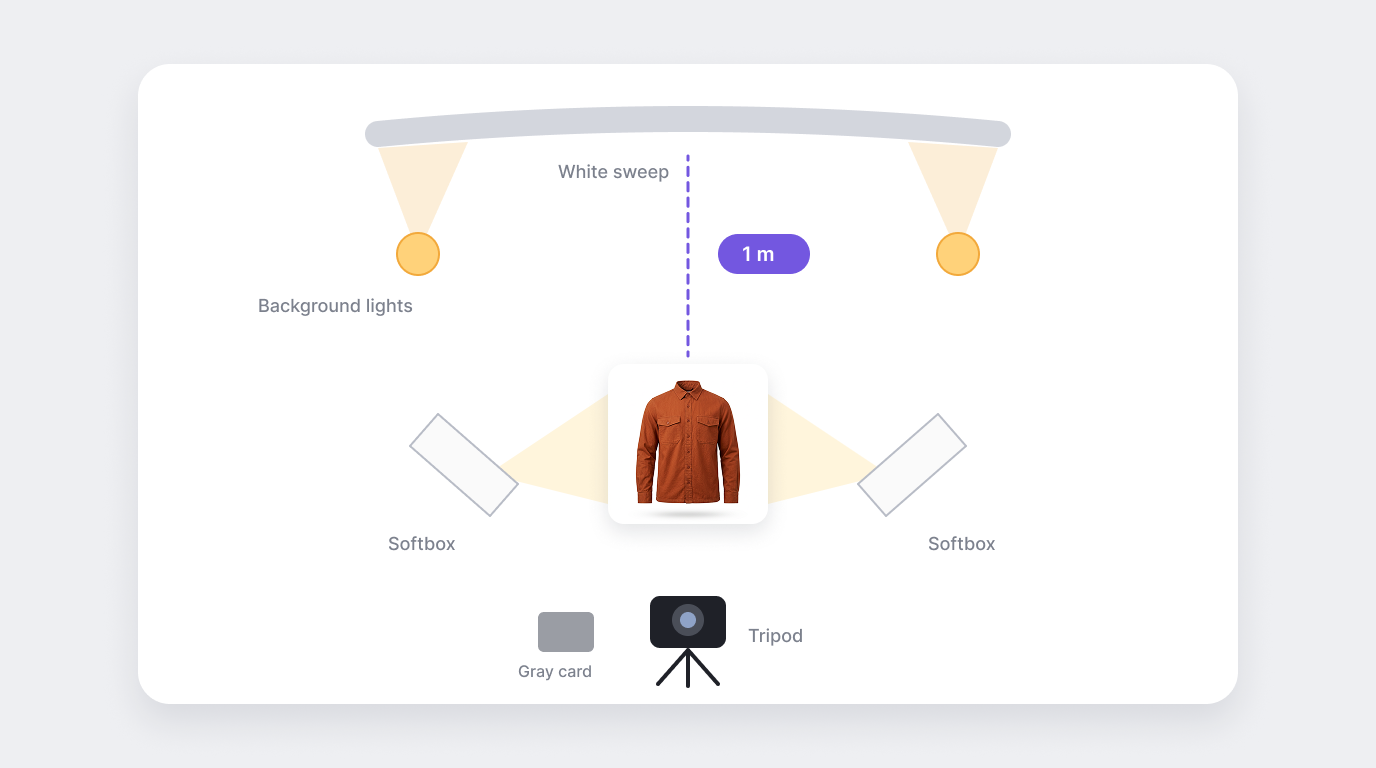
| Background light | One or two lights aimed at the backdrop only | A single lamp behind the product, aimed at the backdrop |
| Camera support | A tripod, so every product sits in the same spot | A phone tripod |
| Color reference | A gray card, shot at the start of each session | A sheet of plain white printer paper |
For clothing, a sweep big enough to fit the whole garment or mannequin matters more than expensive lights. Light tents work for small accessories but are too small for most garments.
How to Shoot on a White Background, Step by Step
Leave space. Put the product about 3 feet (1 m) in front of the backdrop. The gap stops the background light spilling onto the product and keeps shadows off the backdrop.
Light the product first. Turn the background lights off. Set the product lights and expose the product correctly, with detail in both the light and dark areas of the fabric.
Add the background light. Turn the background lights on and raise them until the backdrop reads white. Use the camera's highlight warning or histogram: the background should just reach pure white, and go no further.
Set the camera to manual. Use a low ISO such as 100 or 200 for clean images, and an aperture around f/8 so the whole garment is sharp. Set white balance from the gray card and lock it.
Check the edges. Zoom in on a test shot. If the product's edges glow or fade into the background, the backdrop is too bright, or light is wrapping around the product. Lower the background light a little.
Shoot the batch. Keep every setting the same for the rest of the session, so each product matches the last.
White Background for Flat Lay Clothing
Flat lays are shot from above, so the backdrop is on the floor or a table rather than behind the garment. That changes the lighting.
Lay a white paper sheet or foam board flat and shoot straight down, with the camera on a tripod arm or a step ladder. Light from both sides at a low angle so the fabric texture shows, and lift the garment slightly with foam blocks underneath if you want a soft shadow around the edges. A garment lying directly on the paper has almost no shadow, which can make it look flat.
Because the light falls on the garment and the background at the same time, you cannot light the background separately. Expose for the garment, then take the background to pure white in editing.
Editing to Pure White
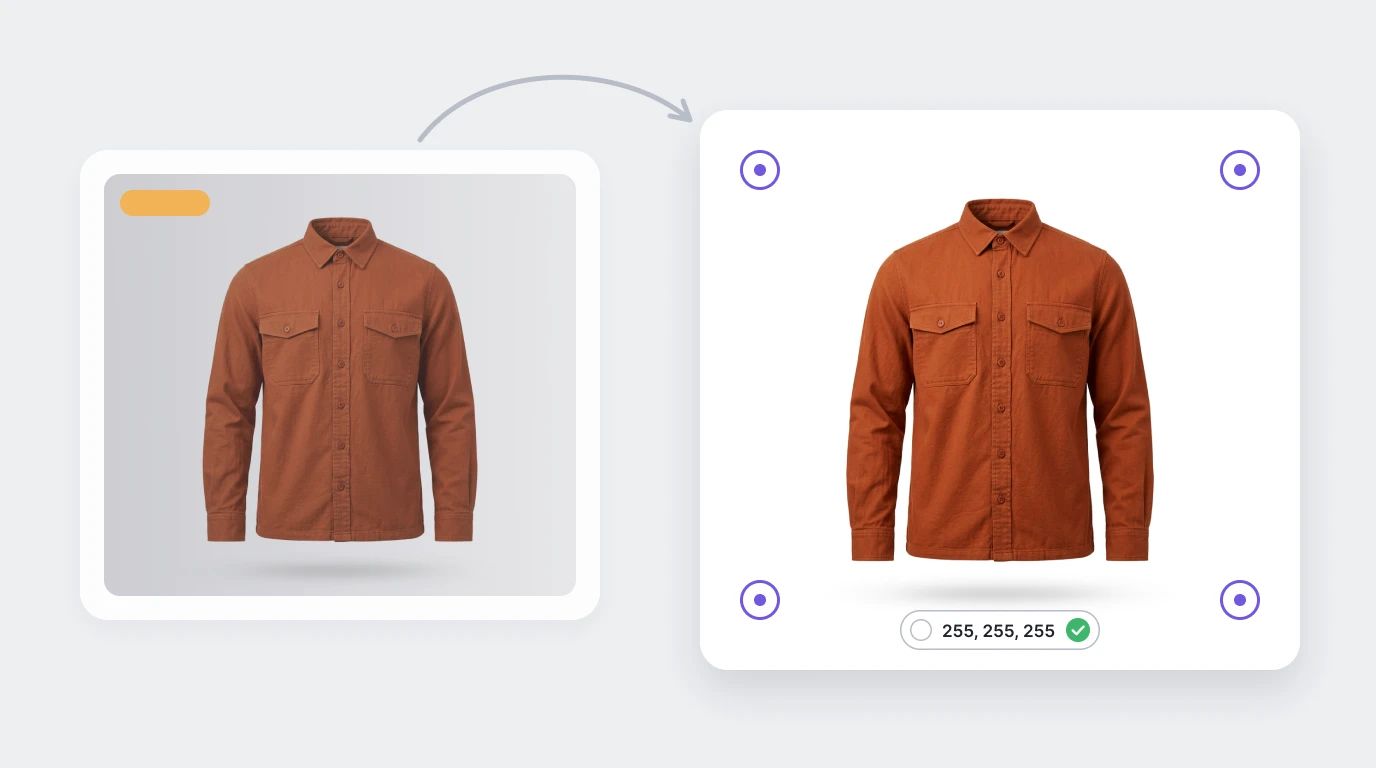
Even a good shot usually needs a final pass to reach exactly 255, 255, 255.
Select the product. Use your editor's subject selection or the pen tool, then invert the selection so the background is selected.
Fill the background. Fill the selection with #FFFFFF, or push it to white with levels or curves applied only to the background.
Keep a soft shadow. A faint, natural shadow under the product stops it looking like it is floating. Keep it subtle on marketplace main images.
Check the numbers. Use the color picker on several corners and edges. Every point should read 255, 255, 255.
Export in sRGB. Export a full-size master, then each channel's size from it.
Background removal tools do the selection for you, and some do the whole edit. Our list of the best background removal tools for ecommerce compares them.
Fixing Common Problems
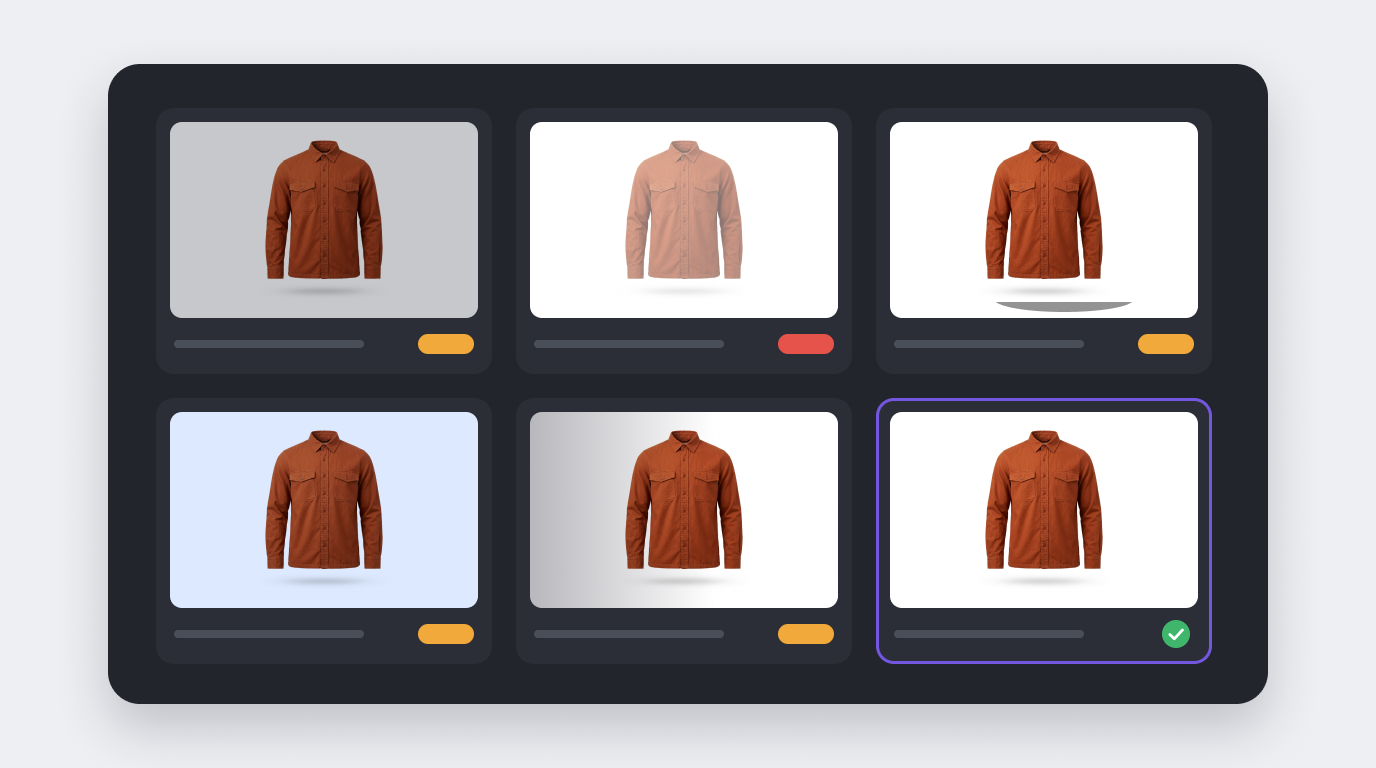
| Problem | Usual cause | Fix |
|---|---|---|
| Background is light gray | Not enough light on the backdrop | Raise the background light, or move it closer to the backdrop |
| Edges glow or look washed out | Backdrop over-lit, light wrapping around the product | Lower the background light and move the product further forward |
| Hard shadow under or behind the product | One light only, or the product too close to the backdrop | Add a second light or a reflector, and increase the gap |
| Blue or yellow tint | Mixed light sources, or auto white balance | Use one type of light, and set white balance from a gray card |
| White garment disappears into the background | Not enough contrast at the edges | Keep the garment slightly darker than the backdrop, and keep a soft shadow to outline it |
| Background uneven from corner to corner | Background light aimed at one spot | Use two background lights, or a wider modifier |
White Background Rules by Channel
| Channel | Main image background | Other rules worth knowing |
|---|---|---|
| Amazon | Pure white, RGB 255, 255, 255 | Product fills 85% to 100% of the frame, at least 1000 px on the longest side |
| Walmart | White or light background recommended | Product fills 70% to 90% of the frame, at least 1000 px on the longest side |
| eBay | White or light background recommended | At least 500 px on the longest side, 1600 px or more for zoom |
| Your own Shopify store | Your choice | Use one background across the catalog, so the collection grid looks consistent |
Rules change, so check each marketplace before a large shoot. Our channel guides for Amazon, Walmart and eBay list the details, and Shopify product image size covers dimensions for your own store.
Shoot Once, Change the Background Later
Marketplaces want white, but your own store, ads and social posts usually look better with a scene behind the product. Reshooting every product for each one is where the cost adds up.
Photogenix generates, replaces or edits product backgrounds from the photos you already have. You choose a clean studio look for the catalog or a lifestyle scene for campaigns, and it adjusts lighting and shadows to match the product. Your white-background master becomes every version you need.
Try Photogenix free, or use the Photogenix app for Shopify inside your store.